

This article is intended for administrators wishing to leverage StorMagic SvSAN to provide resilient, synchronously mirrored, cached and encrypted storage alongside HPE StoreOnce for file storage, compression, deduplication and replication.
StorMagic SvSAN Overview
Any x86 Server
- Turns the underlying storage of virtually any x86 server into highly available shared storage for clusters of two or more nodes.
- Runs as a virtual appliance above the hypervisor and is fully compatible with VMware vSphere, Microsoft Hyper-V and Linux KVM.
High Availability
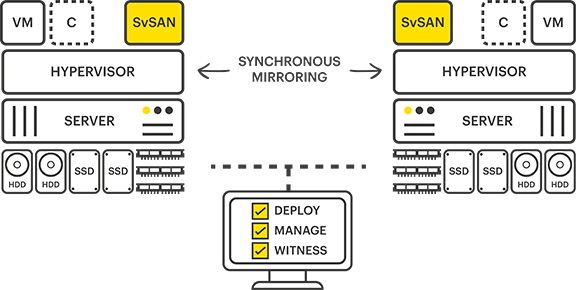
- Shared storage operates using active-active synchronous mirroring between two servers.
- Maintains an identical copy of data on each server.
- If one server fails or is taken offline, the remaining server continues providing storage with no service interruption.
Lightweight Witness
- Provides highly available shared storage using only two nodes.
- The witness can be deployed locally or remotely.
- One witness can provide quorum for up to 1,000 clusters.
SvSAN two-node hyperconverged configuration with witness.
Additional product information:
GreenLake Trial Registration
Register for an HPE GreenLake Backup and Recovery trial using the resources below.
After Registering for the Trial
Software subscription details.
Email containing software subscription details.
GreenLake software subscription portal.
Deploying the GreenLake Orchestrator
Login to:
HPE GreenLake login.
Download the HPE GreenLake Backup and Recovery Orchestrator OVA.
Downloading the Orchestrator OVA.
Select Backup and Recovery.
Backup and Recovery dashboard.
Select Download.
Downloading the Orchestrator appliance.
Deploy the downloaded OVA into your VMware environment using the standard Deploy OVF Template workflow.
Deploying the Orchestrator OVA.
Once deployment has completed, power on the appliance and wait for the initial startup process to finish before continuing with registration.
Activating the GreenLake Orchestrator
After the appliance has been deployed and powered on, browse to the Orchestrator management interface.
Copy the displayed activation code.
Activation code displayed by the Orchestrator.
From your GreenLake console select Activate, paste the activation code and select Activate.
Activating the Orchestrator within GreenLake.
Once activation is complete, the setup status will show as completed.
Successful Orchestrator activation.
The Orchestrator will now appear within the GreenLake console.
Registered Orchestrator in the GreenLake console.
Select the Orchestrator to view and manage its configuration.
Orchestrator management interface.
Configuring HPE StoreOnce
It is also possible to leverage HPE StoreOnce using an SvSAN-provided storage disk as described in the following article:
StorMagic SvSAN and HPE StoreOnce
Add a StoreOnce node to your GreenLake Backup as a Service environment.
Begin by copying the StoreOnce serial number.
StoreOnce appliance serial number.
Within the GreenLake Backup and Recovery portal, add a new StoreOnce system.
Adding an HPE StoreOnce appliance.
Enter the StoreOnce connection details, including the serial number, management address, and authentication credentials.
StoreOnce registration details.
Validate the connection and complete the registration process.
Successful StoreOnce registration.
Once registered, the StoreOnce appliance is available for use as backup storage by the GreenLake Backup and Recovery service.
Registered StoreOnce appliance.
Power On and Activate the Orchestrator
Power on the newly deployed Orchestrator virtual machine.
Powering on the Orchestrator appliance.
After startup has completed, browse to the Orchestrator IP address that was configured during deployment to verify network connectivity.
Orchestrator web interface.
Configure how the appliance will synchronize its date and time.
Configure time synchronization.
Copy the activation code displayed by the appliance.
Orchestrator activation code.
From the GreenLake console, select Activate, paste the activation code and complete the activation.
Activate the Orchestrator.
Once activation has completed, the setup status will show as completed.
Activation completed successfully.
The Orchestrator will now appear in the GreenLake console.
Registered Orchestrator.
Select the Orchestrator to view and manage its configuration.
Orchestrator management page.
Registering an HPE StoreOnce Appliance
In the GreenLake console select + or Register.
Registering a StoreOnce appliance.
Enter the StoreOnce details and select Register.
StoreOnce registration details.
Deploying the Protection Store Gateway
Next, deploy a Protection Store Gateway.
Protection Store Gateway.
Select Deploy to begin the deployment wizard.
Starting the deployment wizard.
Select the VMware environment where the gateway will be deployed.
Selecting the VMware environment.
Configure the deployment settings and continue through the wizard.
Protection Store Gateway deployment settings.
Select the destination ESXi host for the Protection Store Gateway.
Selecting the destination host.
Select the datastore that will contain the Protection Store Gateway virtual machine.
Selecting the datastore.
Configure the network that will be used by the gateway appliance.
Network configuration.
Configure the appliance networking, including the management IP address, subnet mask, gateway and DNS settings.
Gateway network settings.
After reviewing the deployment summary, complete the wizard to deploy the Protection Store Gateway.
Protection Store Gateway deployment completed.
Create Protection Policies
Create the required protection policies for your environment.
- On-prem → Cloud
- Direct to Cloud
Create Protection Policies
Create the required protection policies for your environment.
- On-prem to Cloud
- Direct to Cloud
Confirm Backups are Running
After the protection policy has been applied, verify that backup jobs are running successfully.
Confirm that protection jobs complete successfully and that recovery points are being created as expected.
Run a Restore
Perform a restore operation to validate that protected virtual machines can be recovered successfully.
Comments
0 comments
Article is closed for comments.